

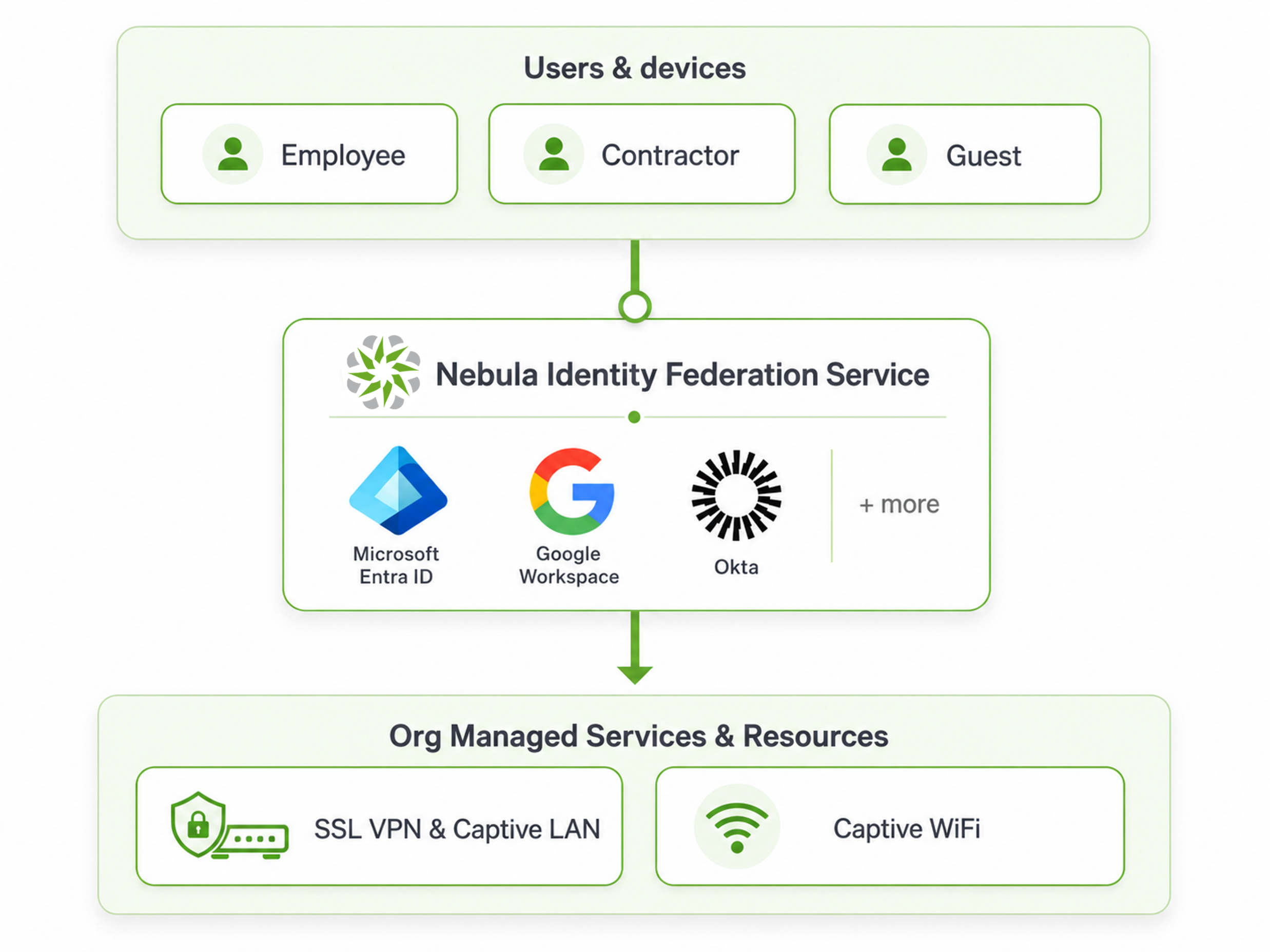
Nebula Identity Federation Service (NID FS) allows organizations to use their existing Identity Provider (IdP) to authenticate users for Nebula-managed network services.
Instead of creating and managing separate user accounts for network access, NID FS acts as a bridge between Nebula and an external identity provider, such as Microsoft Entra ID, Google Workspace, or Okta. It uses the OpenID Connect (OIDC) standard to securely authenticate users through their existing corporate accounts.
NID FS can be used for user authentication with services such as WiFi, Captive Portal, and SSL VPN.
In this article, we will demonstrate how to configure NID FS with NCAS as the Identity Provider and use it to authenticate users for SSL VPN access.
In this example, we will focus on SSL VPN authentication using NCAS as the Identity Provider.
Use Cases
Nebula Identity Federation Service can be used in different scenarios depending on the organization's identity management and network access requirements.
Centralized authentication
NID FS allows users to authenticate using their existing identity provider, such as Microsoft Entra ID, Google Workspace, or Okta. This eliminates the need to maintain separate credentials for network access.
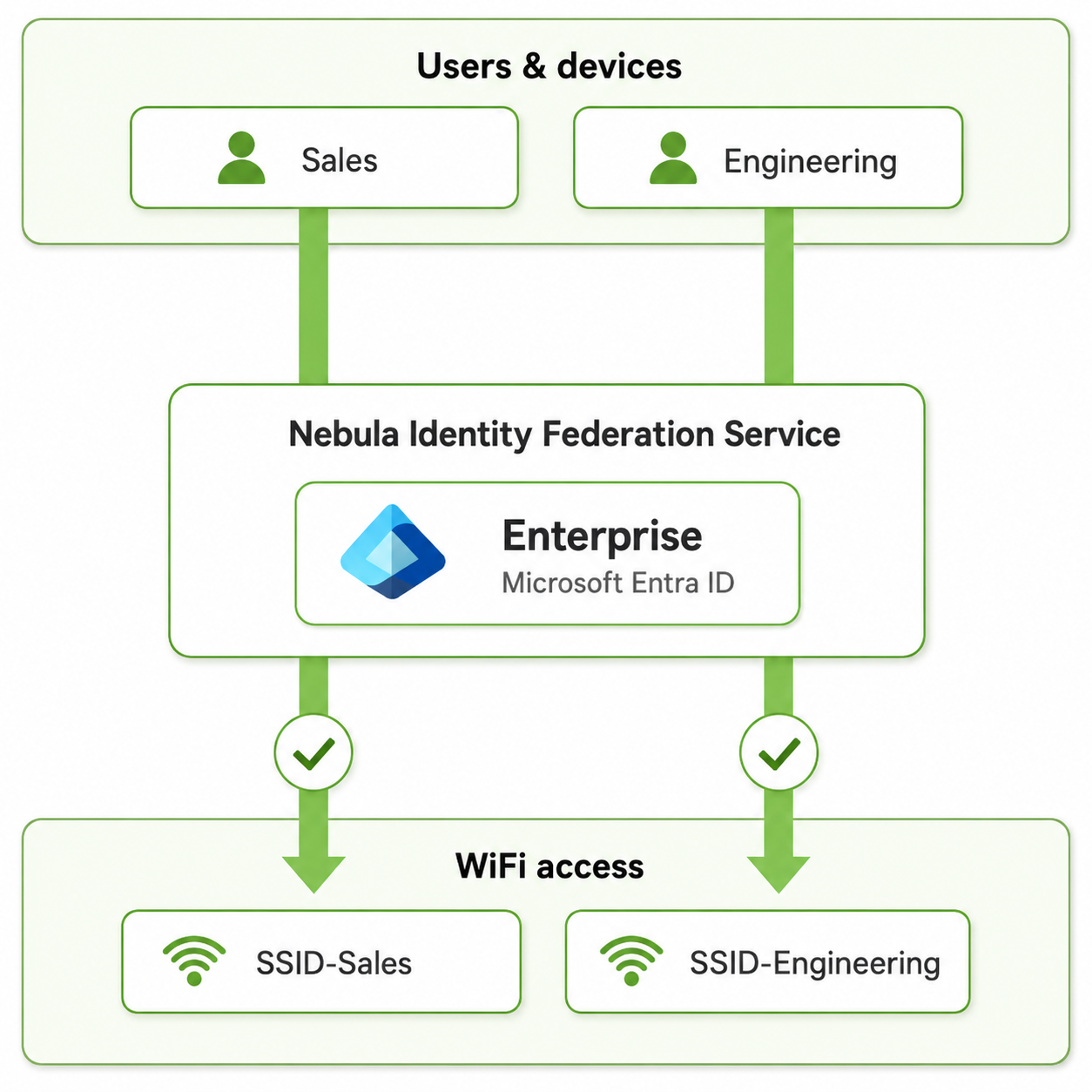
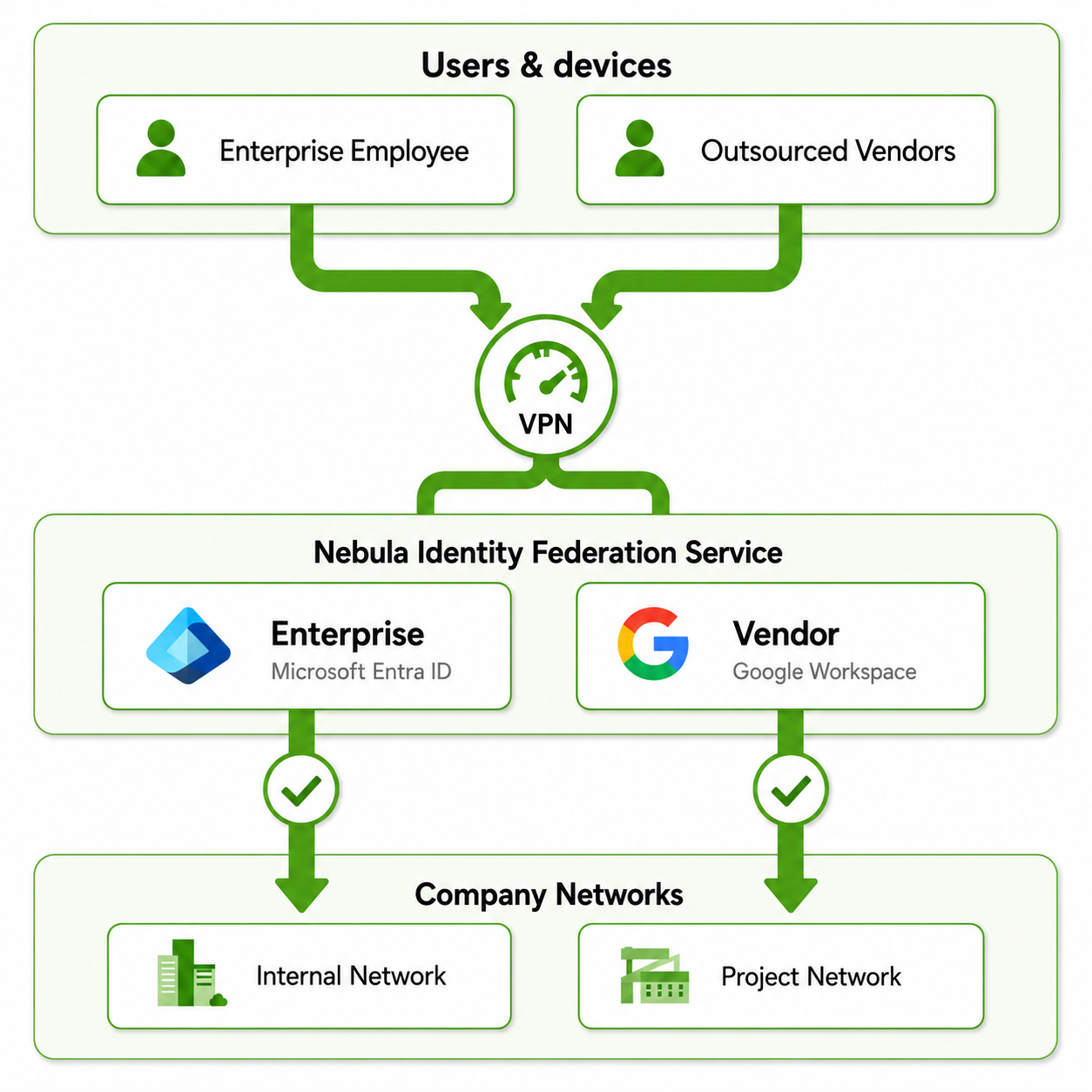
| Centralized authentication | Different access for different user groups | Multiple Identity Providers |
| Users can authenticate using their existing Identity Provider, such as Microsoft Entra ID, Google Workspace, or Okta, without requiring separate network credentials. | NID FS can be used to provide different network access based on user groups. For example, Sales and Engineering users can authenticate through the same corporate Identity Provider while accessing different SSIDs or network resources. | NID FS can also integrate multiple Identity Providers. For example, company employees can authenticate through Microsoft Entra ID, while external vendors or contractors can use another Identity Provider such as Google Workspace. Both can be used to access the required company resources, such as VPN services. |
 |  |  |
Configuration Example: SSL VPN with NID FS
In this example, we will configure Nebula Identity Federation Service for SSL VPN authentication on a Zyxel H Series Firewall.
NCAS will be used as the Identity Provider, and OpenVPN Connect will be used as the remote VPN client. The authenticated user will be granted SSL VPN access through the Nebula User Privilege Policy.
1. Configure Nebula Identity Federation Service
Before configuring NID FS, make sure an NCAS user account is available for authentication.
1.1 Create an NCAS User
Go to: Organization-wide > Organization-wide manage > Nebula cloud authentication serverOpen the User tab and click Add.
Configure the user account with the required information.
| Setting | Value |
|---|---|
zyvpn@zyxel.eu | |
| Username | zyvpn |
| Password | Specify a password |
| VPN Access | Allow to use Remote VPN access |
| Authorized | All sites |
| Expires | Never |
| Login by | Username or Email |
Note: In this NID FS-based SSL VPN configuration, it is not necessary to enable Allow to use Remote VPN access for the NCAS user. SSL VPN access will be provided through the NID FS User Privilege Policy in the next step.
1.2 Add the Identity Provider
Go to: Organization-wide > Organization-wide manage > Nebula Identity Federation Service
Enable Nebula Identity Federation Service
click Add
Configure the Identity Provider as follows
| Setting | Value |
|---|---|
| Name | NCAS Lab |
| Type | NCAS |
| Organization | ZXYEL EMEA E-LAB |
Click Confirm to save the configuration.
In this example, NCAS is used as the Identity Provider for NID FS.
1.3 Configure User Privilege Policy
After adding the Identity Provider, open the User privilege tab and click Add.
Configure the policy as follows:
| Setting | Value |
|---|---|
| Policy name | NCAS All Users |
| Source IdP | NCAS Lab |
| Principle type | All users (can be restricted to specific users) |
Select All users as the principle type to allow users authenticated through the configured NCAS Identity Provider to use the services assigned to this policy.
Click Next to continue with service selection.
1.4 Allow SSL VPN and NID FS Redirect Ports
To allow remote users to establish an SSL VPN connection and access the NID FS authentication service, make sure the required services are allowed on the firewall.
Go to: Site-wide > Configure > Firewall > Object > Service
Verify that the NIDFS service is configured with the following settings:
| Setting | Value |
|---|---|
| Name | NIDFS |
| Protocol | TCP |
| Port | 1003 |
The NIDFS service is used for the NID FS authentication redirect.
Next, go to Service Group and make sure the service group used by the WAN-to-firewall security policy contains both:
- SSLVPN
- NIDFS
In this example, both services are included in the Default_Allow_WAN_To_ZyWALL service group.
2. Configure SSL VPN on the H Series Firewall
Site-wide > Configure > Firewall > Remote access VPN
Scroll down to the SSL VPN Server section and enable SSL VPN Server.
Configure the SSL VPN server as follows:
| Setting | Value |
|---|---|
| Type | Nebula assigned domain name |
| Server Port | 10443 |
| Sign-on with | Nebula identity federation service |
The Nebula assigned domain name is used as the VPN server address, allowing remote clients to connect to the SSL VPN service using the domain name assigned by Nebula.
Select Nebula identity federation service under Sign-on with to use NID FS for SSL VPN authentication.
After configuring the settings, click Download under SSL VPN configuration download to download the configuration file for the VPN client.
2.1 Download the SSL VPN Configuration
Under SSL VPN configuration download, click Download to download the SSL VPN configuration file.
The downloaded configuration file will be used to configure the OpenVPN client in the next step.
After downloading the SSL VPN configuration, extract the downloaded archive.
The archive contains the OpenVPN profile:
RemoteAccess_SSLVPN.ovpn
Import the .ovpn profile into OpenVPN Connect.
Once the profile is imported, the VPN connection appears in OpenVPN Connect. Click Connect to initiate the SSL VPN connection.
When the VPN connection is started, OpenVPN Connect opens the system browser for authentication.
The Authentication required window indicates that authentication must be completed through the NID FS authentication page.
If the browser does not open automatically, copy the displayed URL and open it manually in the system browser.
After the authentication page opens, enter the credentials of the NCAS user configured earlier.
Troubleshooting
NID FS Authentication Error
If the following error appears during SSL VPN authentication:
Authentication could not be completed
The Nebula identity federation service and identity provider configuration may be incorrect
If the NID FS and Identity Provider settings are correct, try re-applying the SSL VPN server certificate settings in the H Series Firewall Web GUI:
- In the H Series Firewall Web GUI, go to User & Authentication > User Authentication > Advanced.
- Under Nebula identity federation service redirection endpoint, temporarily select a different SSLVPN Server Certificate.
- Click Apply.
- Select Auto again and click Apply.
Comments
0 commentsPlease sign in to leave a comment.