

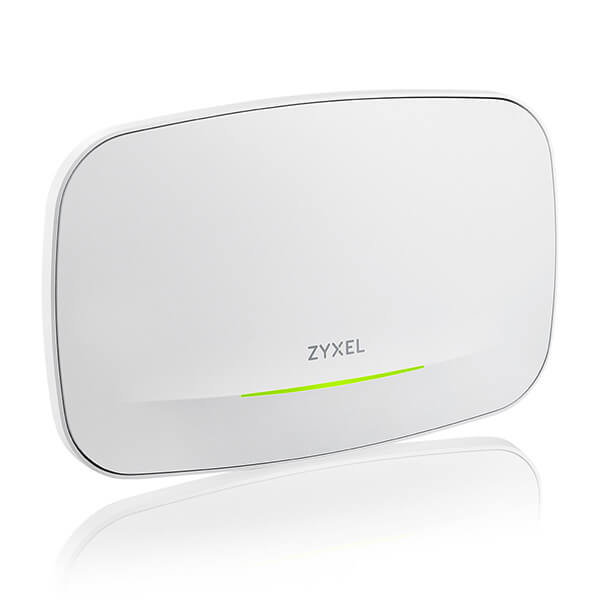
The Zyxel NWA210BE (BE12300 WiFi 7 Dual-Radio NebulaFlex Access Point NWA210BE) is a high-performance WiFi 7 access point designed to enhance modern office connectivity. It features a dual-radio setup with 2x2:2 at 2.4GHz and 4x4:4 at 5GHz or 6GHz, delivering speeds up to 12.3 Gbps. Its BandFlex design allows configuration for either 5GHz or 6GHz, providing flexibility for current and future network requirements.
 |  |
Initial Setup Steps:
- Power the Device:
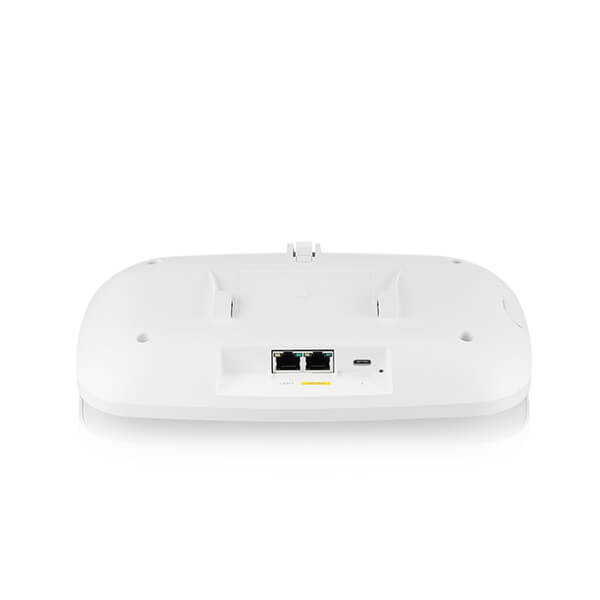
- Connect the NWA210BE to a Power over Ethernet (PoE+) source or use a USB Type-C charger (not included).
- Connect to the Access Point:
- Via Wi-Fi:
- On your computer or mobile device, search for the default Wi-Fi network named "Zyxel-xxxx" (where "xxxx" represents the last four characters of the device's MAC address).
- Connect to this network.
- Via Ethernet:
- Use an Ethernet cable to connect your computer to the NWA210BE's UPLINK port through a PoE injector or PoE switch.
- Via Wi-Fi:
- Access the Web Configurator:
- For Wi-Fi Connection:
- Open a web browser and enter
https://1.1.1.1orhttps://setup.zyxel.com.
- Open a web browser and enter
- For Ethernet Connection:
- Ensure your computer's IP address is in the same subnet as the NWA210BE.
- Open a web browser and enter
https://192.168.1.2.
- For Wi-Fi Connection:
- Log In:
- Enter the default username:
admin. - Enter the default password found on the device's label.
The username for logging into the local web interface is typically "admin", but the password is unique to each Zyxel NWA210BE access point. You can find it on the sticker located on the device itself. It's always a good practice to change the default password after the initial setup to enhance security. |
5. Run the Setup Wizard:
- Upon logging in, the setup wizard will launch automatically.
- Follow the on-screen instructions to configure your device's settings.
It's always a good practice to change the default password after the initial setup to enhance security.
Once you have changed your login password, you will see the now familiar 5-step wizard please proceed forward and complete all the necessary settings:
Time Settings (Country and Time Zone)
Uplink Connection (Auto(DHCP) or Static IP)
Auto (DHCP)
Select this option if the NWA210BE is connected to a router with DHCP server enabled. In this case, the Zyxel device will automatically receive an IP address, and you can check the router's settings to find the assigned IP in order to access the device’s web interface.
Static IP
Select this option if the device is not connected to a router or if you want to assign a fixed IP address manually.
You will need to enter:
the Zyxel device’s IP address and subnet mask
the router’s (or gateway’s) IP address used to route traffic to the internet
the IP address of a DNS server (required to access websites by name, such as
example.com, instead of by IP address)
SSID (Name and Security Type)
Use this screen to enable, disable or edit an SSID profile. An SSID profile is a configuration template for SSID (Service Set IDentifier). It allows you to configure the SSID settings such as WiFi network name, VLAN ID, frequency band and security. You can configure multiple SSID profiles to provide different network access for various user groups.
Edit SSID Profile
This screen lets you set up a WiFi network (SSID profile). What you see depends on the selected security type.
SSID
Type a name for the WiFi network (up to 32 characters).
Status
Choose "Active" to enable this SSID on all radios, or "Inactive" to save the profile without using it yet.
VLAN ID
If needed, enter a VLAN ID to tag traffic coming from this SSID.
Band
Choose the frequency band:
2.4 GHz works with 802.11b/g/n/ax devices
5 GHz works with 802.11a/n/ac/ax devices
6 GHz works with 802.11ax devices (only available on some models)
Security Type
Choose WPA2 or WPA3 to secure your network (recommended). Choose OPEN or Enhanced-Open if you want to allow devices to connect without a password.
Personal
Stores passwords on the Zyxel device. Enter a WiFi password (8–63 characters) or 64 hexadecimal digits.
Enterprise
Uses an external RADIUS server for user authentication. Enter the server’s IP address, port, and shared secret. You can also set a secondary server.
Click OK to save or Cancel to exit without saving.
Radio (Band and Output Power)
This screen lets you set up the wireless radio of your Zyxel device.
Band
Choose the frequency band for this radio (2.4 GHz, 5 GHz, or 6 GHz). If BandFlex is not supported, the band cannot be changed.
Channel Width
Select how wide the WiFi channel should be. The device will automatically pick the best width based on your environment and connected devices.
Channel Selection
Choose Auto to let the device pick the channel with the least interference. Or choose Manual and set the channel yourself. Available channels depend on the band and your country.
Maximum Output Power
Set how strong the signal should be. If many access points are nearby, lower the power to reduce interference.
If the Country you select in Step 1 does not support 6 GHz, the 6G option will gray out, or a warning message will display when you select 6G. Click OK to return to the previous page.
Summary (Check the settings you made and save)
Use this screen to check whether what you have configured is correct. Click Save to apply your settings and complete the wizard setup. Otherwise, click Back to return to the previous screen or click Exit to close the wizard without saving.
If you changed the default WiFi name (SSID) or password, make sure to reconnect your devices using the new network details.
The NWA210BE also supports Zyxel NebulaFlex, which lets you easily switch between standalone mode and Nebula cloud management for flexible and centralized control of your device.
Comments
0 comments
Please sign in to leave a comment.